HD mapping has a reputation for being slow, expensive, and locked inside someone else’s software. Closed pipelines and black-box vendor tools leave you with a map in a format you can’t fully open, built from data you generated yourself.
You shouldn’t need a proprietary fleet or a cloud gatekeeper to map your own property. You need open formats, and a tool that lets you see every step between the scan and the vehicle.
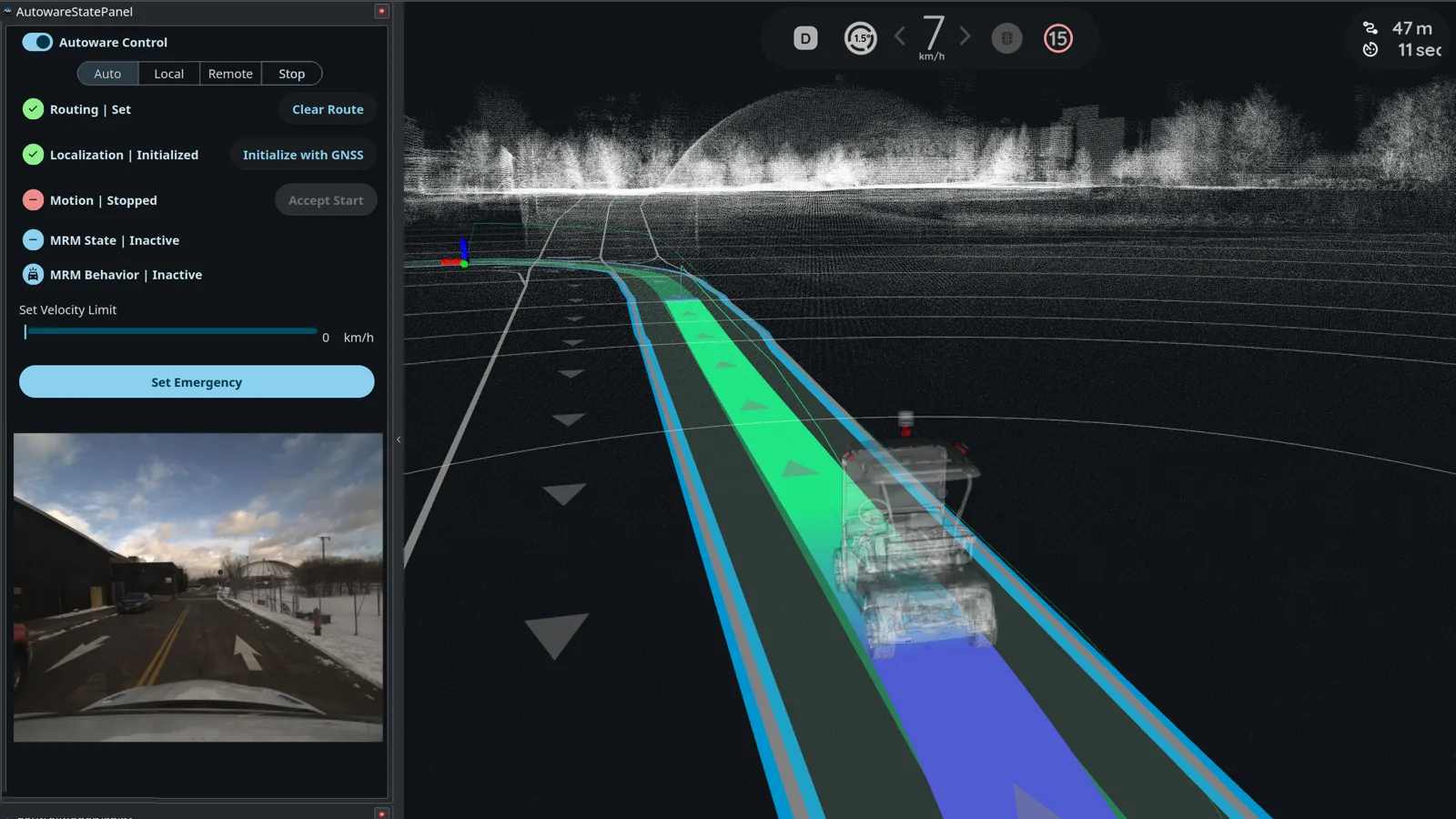
Our first video walkthrough puts that into practice. It takes a raw scan from a real outdoor drive and carries it all the way to a map a vehicle can follow in Autoware. The whole thing runs under three minutes.
Veer Studio HD Map Workflow.
The rest of this post walks through the same stages and explains why they come in the order they do.
Start with the data
Every map starts with a recording. The data in this walkthrough is from Boreas-RT, a multi-sensor dataset collected by the University of Toronto Institute for Aerospace Studies (UTIAS). A vehicle drove nine real-world routes, 643 km in total, and each route was driven several times, so the same roads come back under different traffic and, in some cases, different weather.
The vehicle carries a rig like the one in Five sensors, one reality: a 128-channel lidar that spins a full circle, a camera, an inertial unit, and a wheel encoder, plus a radar and a second, FMCW lidar. Position comes from a GNSS and inertial unit, which is post-processed after the drive at 200 hertz into the reference trajectory the dataset is benchmarked against.
Each recording is stored as a sequence: a folder named for the moment the drive started, such as boreas-YYYY-MM-DD-HH-MM. Inside, each sensor has its own directory, and a calibration folder records how the sensors sit on the vehicle, so a sequence can be used on its own. Every file is named with a UNIX epoch timestamp in microseconds, all on the same UTC clock. A lidar scan is one .bin file, timed to the middle of the rotation, and every point in it keeps its own timestamp. A camera frame is one .png, timed to the middle of its exposure.
The sensors share a clock, but their measurements do not line up. A lidar and a camera each trigger on their own schedule, so their frames never match one to one. Fusing them is a matter of timestamps, not of waiting for frames that happen to coincide. That is the raw material the rest of this post works from.
Anchor the reference
Everything in the map has to share one coordinate system, so the workflow starts by anchoring it. Studio imports an OpenStreetMap region as a reference layer. The file’s geographic anchor becomes the project’s, and the project switches to a tangent-plane frame: a flat working grid laid over the site, so the reference roads and the scan project into the same local space.
The anchor does more than line things up. When you export, Studio has to convert local coordinates back into latitude and longitude, and it can only do that because the anchor was recorded at the start. The coordinate post covers why a coordinate needs that kind of agreement behind it.
Reference data is editable, but it is not the navigation map. It is the base you trace on top of.
Bring in the scan
The point cloud is the reality layer, the dense 3D measurement of the surfaces around the vehicle. The video covers the processing that turns a raw outdoor scan into a cloud Studio can use, including the SLAM step that builds it. Five sensors, one reality covers what produces that data in the first place.
On import, Studio asks how to handle the cloud’s coordinates. You can recenter it at the stage origin, keep the survey’s MGRS grid reference (the Military Grid Reference System) as the anchor, or keep the raw coordinates unchanged. Auto-centering is the default, and for most survey work it is the quickest way to get going.
Ground first
Before you trace a single lanelet, build the ground surface. Add Road Mesh generates a road surface along the imported road centerlines, with heights sampled from the point cloud.
The order matters. When a lanelet is committed, Studio sets its boundary points from the mesh beneath them, so the lanelet settles onto the terrain. Without a mesh under it, a lanelet keeps whatever height it was drawn at. That is the vertical question from the geographic coordinates chapter: a height means something only relative to a surface, and the mesh is that surface.
Generate, then review
Lanelets turn the map into a navigation map. Generate Lanelet Map from OSM reads the imported roads and drafts the network in one step. The drafts appear as proposed lanelets, drawn yellow and dashed, so you can tell at a glance that a machine produced them.
A proposed lanelet is a draft. You fine-tune its boundaries, edit the ones the generator got wrong, or delete them. Once the review is done, Commit Roads promotes every proposed lanelet to the authoritative map in one click.
If you would rather draw a road yourself, Add Lanelet traces one by clicking points along the middle of a reference road. A lanelet you draw by hand is committed as soon as you finish it.
Validate, then export
Run Validate Stage before you export. It applies nine validators to the stage and reports errors and warnings. Errors block a ship. Warnings deserve a look but do not stop one. A lone road with no neighbors legitimately ends somewhere, so a dead-end warning on it is expected.
Export writes an Autoware Map Loader Bundle, a folder of files that Autoware reads. The bundle is a handoff, not a live connection. Studio writes the map, and Autoware loads it the way it would load any map.
The video closes by deploying the bundle into Autoware and driving a pre-computed route in simulation. That is the test that matters: a map is only finished once a vehicle can follow it.
If you are building a map for a site and want to see this workflow on your own data, get in touch or take a look at Veer Studio. For the theory behind each stage, the HD Map Handbook covers the sensors, the coordinate frames, and the lanelet structure underneath.